
Each year, more and more auxes are learning the hard way that many bureaucratic processes are now being done solely with digital certificates/CL@VE. Make sure you apply for one before you absolutely need it, and CHECK THAT IT WORKS (I cover how in this page). Don’t get stuck with an expired TIE when trying to renew through Mercurio – the online service that processes bureaucracy for foreigners but requires a digital certificate/CL@VE.
Annoyed with spending all day waiting for your in person bureaucratic appointments?
Having difficulty finding appointments?
Were the bureaucratic application processes moved entirely online?
Do you want a way to complete (most) of these bureaucratic tasks online?
Then you need a Certificado Digital!
An Electronic Certificate (or digital certificate) is a digital file issued by a trusted third party (a Certification Authority) that guarantees the link between the identity of a person or entity and its public key. Therefore, it authenticates its holder’s identity unequivocally.
It is a way of verifying your identity online. Through a digital certificate and the program “autofirma”, you are able to complete bureaucratic processes completely online with often immediate results.
There are multiple types of authenticators and digital certificates with almost identical function and application processes. Most bureaucratic processes will accept a range of online authenticators, but sometimes only one or the other would be accepted. This page is a guide to getting an FNMT Certificado Digital.
I have used the FNMT certificate for all my bureaucratic needs without issue, but you can apply for any other certificate (or multiple). In fact, you can use your Certificado Digital to apply for Cl@ve completely online.
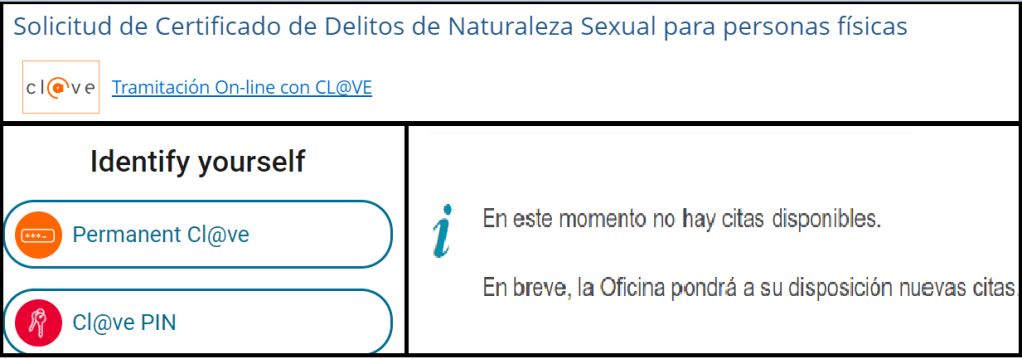
Here is an example of getting your certificado de delitos de naturaleza sexual with the FNMT digital certificate (you should check if your Digital Certificate works by doing the same after you finish the process):
Step 1: Go the following website – https://sede.mjusticia.gob.es/es/tramites/certificado-registro-central
Step 2: Select “Tramitación On-Line con CL@VE”

Yes, it says Cl@ve, and I only have the FNMT digital certificate, but Spain is awful at labeling things correctly. Just like how “Kleenex” means “Tissue” and not always just the specific brand, many webpages will mention a specific authenticator to reference authenticators in general.
Step 3: “Select eldentifier”

Step 4: Your digital certificate will identify yourself to the website giving you access to an online request form.
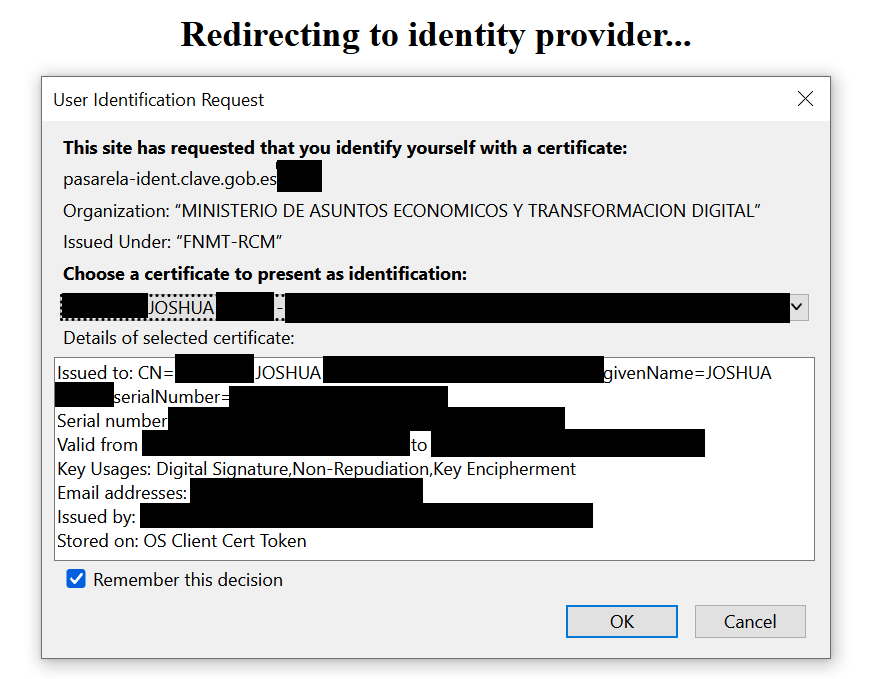
Step 5: Confirm your request and immediately receive an email with your certificate.
The entire process takes about 30 seconds!
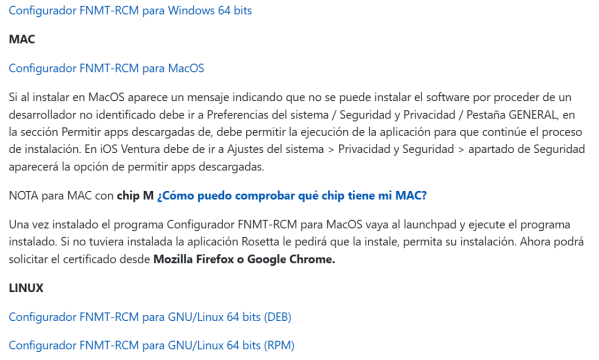
**The digital certificate and process to acquire one is compatible with Edge and Firefox. Google Chrome can often have issues. Additionally, if you use a Mac, you will likely have difficulties with the digital certificate and Autofirma as well. I will link a PDF with a solution below.**
Basically, your digital certificate and Autofirma should link with your web browser and run in the background. Once these programs are prompted (like when you open a webpage that requires a digital certificate), it should automatically open, identify you to the webpage, and grant you access. For whatever reason, some of Mac’s microchips don’t allow this to happen. The PDF above gives a workaround for that if you have that issue (this is why it’s important to test these programs after setting them up).
How to get a Certificado Digital:
Step 1: Download CONFIGURADOR FNMT-RCM. This is the key generating software used in a digital certificate.
Download Link (sed.fnmt.gob.es)
Step 2: Apply for a digital certificate online by inputting your data.
Application Link (sed.fnmt.gob.es)
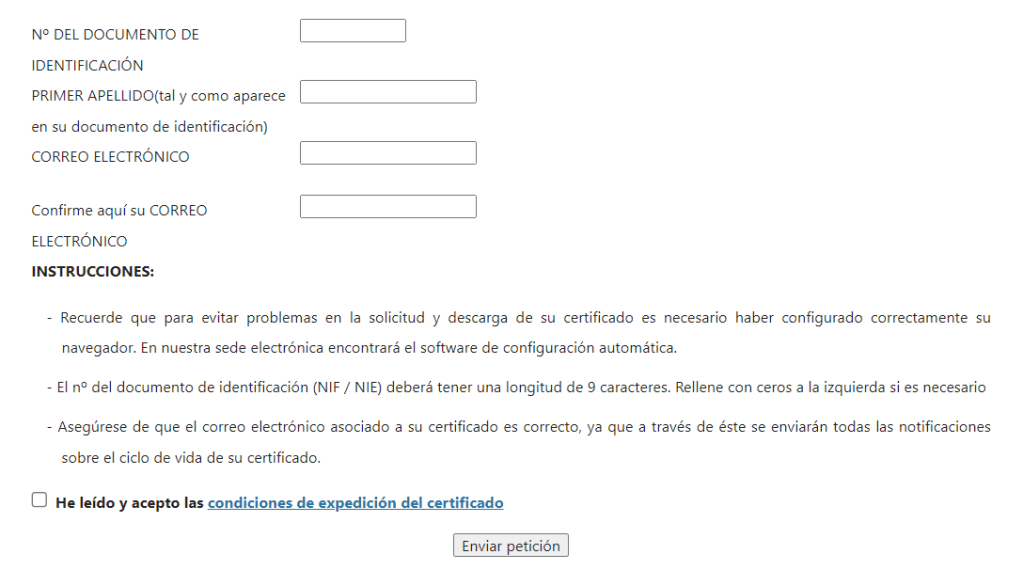
When you hit “Enviar Peticion”, there will be a pop-up asking for you to create a password. Please, make sure to fill in this information and not to forget your password.
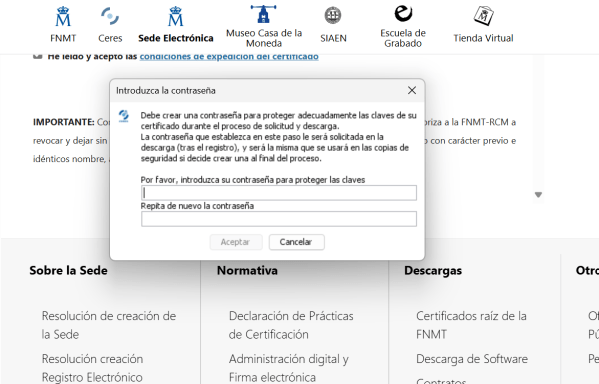
If you do not complete this step and remember your password, you will have to restart the process after receiving the certificado digital.
After completing this step, you should receive an email from FNMT with a 9 digit code.
Step 3: Verify your identity in person or via video certification.*

Requirements:

You need your 9 digit code, TIE (or official NIF/NIE document), and passport.
Making an Appointment:
Appointment Link
(if you have trouble getting the link to work, you can google “OAMR Cita Previa” to find the right page.)
Go to the following link and select your region.
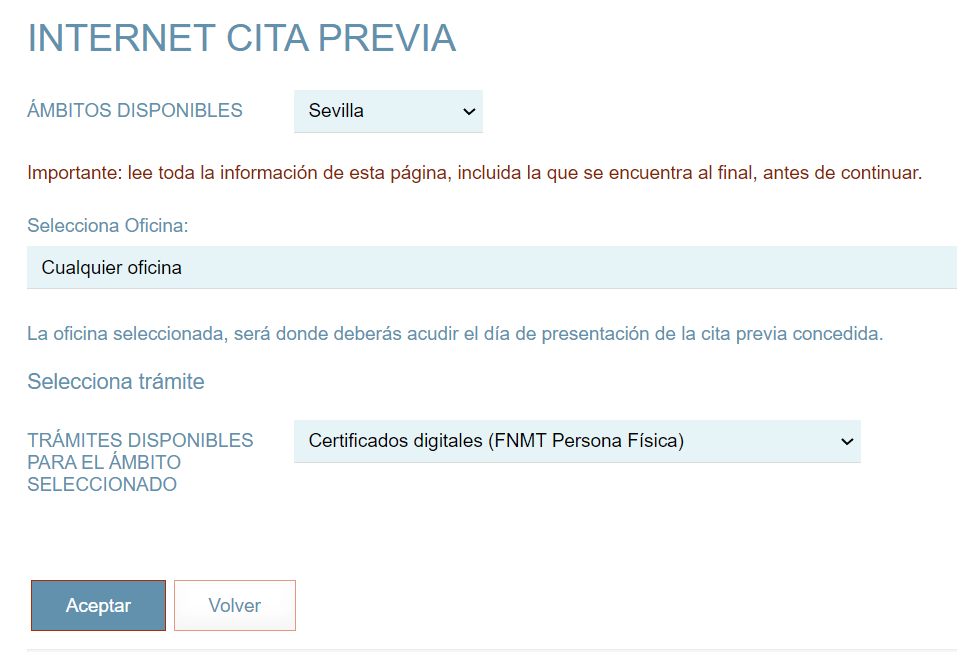
Click continue and enter your personal information on the following page.

Request an appointment, choose your office, and add your contact information alongside your 9 digit code.
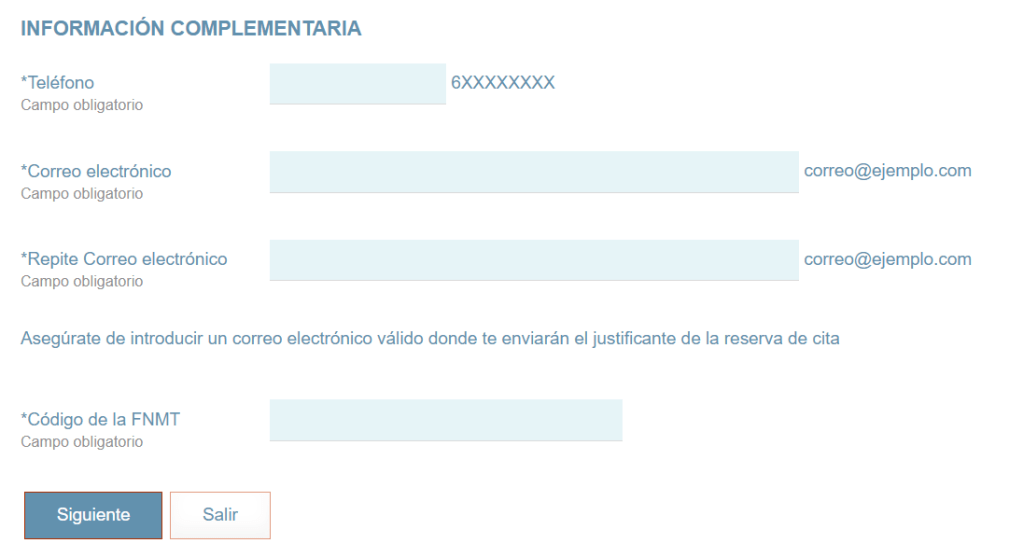
Select your appointment and bring your TIE (or official NIF/NIE document), passport, appointment, and 9 digit code with you. It is a short appointment where they verify your ID.
After this appointment, you will receive an email with a download link and your application code. During the download process, I recommend marking the option to have your clave be exportable. This allows you to make a security copy of your key (such as saving a copy on a flash drive).

If you have found this website useful, please consider making a small donation of a dollar or two to the webpage. I am only able to maintain this website through the support of my viewers, and with only an average of 1 donor per 10,000 viewers, each contribution is vital. You can be the 1 in 10,000 that makes a difference.
https://residency2spain.com/support-the-page/#Donate
(This is just a link to a page with different donation options.)
Step 4: Using the same computer and same process as before, download your certificate. Make sure to input your information exactly as you did during your application.
Certificate Download Link (sed.fnmt.gob.es)
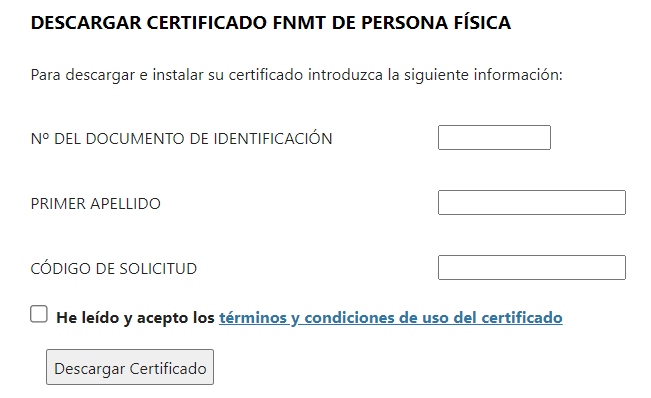
I recommend keeping a copy on your computer and flash drive for safekeeping.
Remember to also get Autofirma!
Step 1: Identify which download you need.

Then, go to the link above and download the correct option for you.
Step 2: Once you download Autofirma, you should get a zipped folder.
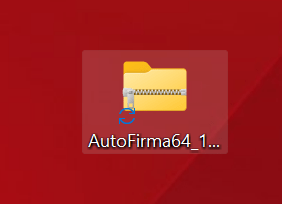
To extract and install the program, follow this short video I made.
After installing the program, all you have to do when you want to sign a document is open Autofirma, press the button and select your file or drag the file you want to sign into the box. You may also need Autofirma for other processes such as your TIE Renewal online.

I’ll give an example with a PDF document.
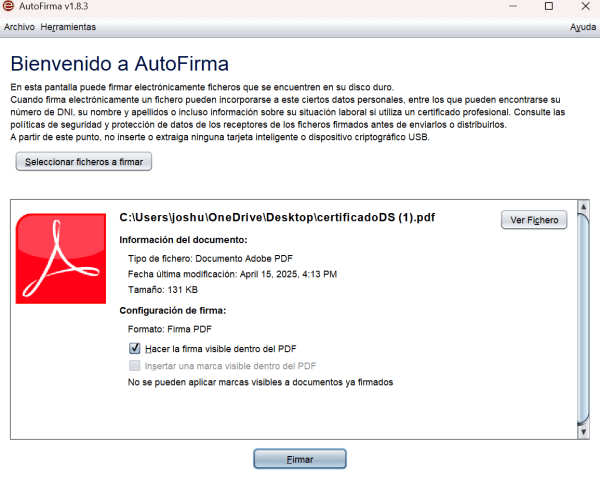
Press “Firmar”.
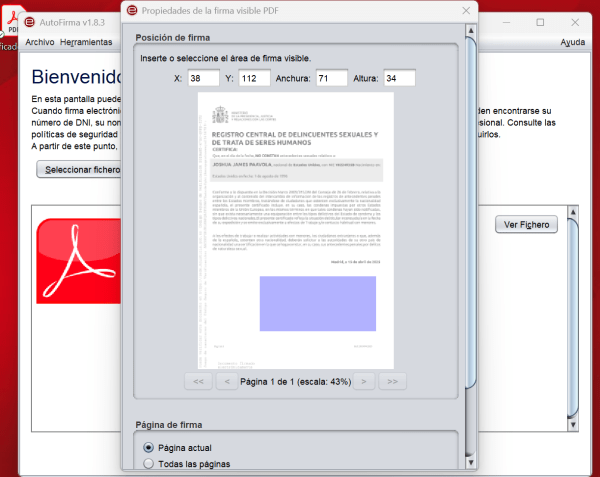
Scroll down and select “Siguiente”. In the next page you can choose font, color, and any other style that you wish, but the default is fine. Click “Aceptar”. The next page will have you select your certificate. Use the FNMT digital certificate. Save the new file, and that’s it! You’re able to digitally sign documents through Autofirma.
How long is the Digital Certificate valid? If your certificate is issued by AC FNMT, it will have a validity period of 4 years.

Make sure to set a reminder in your calendar. If you don’t renew your digital certificate before it expires, you will have to go through the whole process all over again. Renewing is simple. Follow the instructions provided here:
https://www.sede.fnmt.gob.es/certificados/persona-fisica/renovar/configuracion-previa
After finishing the process, you can test it out for yourself using the example above with the certificado por delitos de naturaleza sexual application.
The digital certificate will work passively in the background allowing you to complete bureaucratic processes completely online. Unfortunately, it won’t work for every process. Some things need to be done in person (for example: toma de huellas).
Digital Certificate App
Important Note: If you already have a digital certificate from FNMT and you request another certificate through the mobile app, the previous one will be autorevoked. You are only allowed one certificate per citizen.
However, you can import your previous copy through the app. Generally though, I do NOT recommend you do this. It’s an additional risk if you lose your phone or have it stolen. Remember that the digital certificate carries all of your personal information to identify yourself to the government, and there isn’t much benefit to having it on your phone.
How often do you need to use your digital certificate while out and about? Instead, complete all your bureaucracy needs at home with a laptop or desktop computer. If you decide to ignore these risks, you can find instructions to get the app below:
Obtener Certificado con Dispositivo Móvil
If you found the website useful, please Support the Page. Every little bit helps.
Back to Navigation
The information on http://www.residency2spain.com is provided in good faith and is intended for general informational purposes only. Residency2spain makes no guarantees regarding the accuracy, reliability, or completeness of the content. Any decisions you make based on the information found on this site are made at your own discretion and risk. Residency2spain is not liable for any loss or damage resulting from the use of this website.
Copyright © 2022 Residency2Spain All rights reserved.

